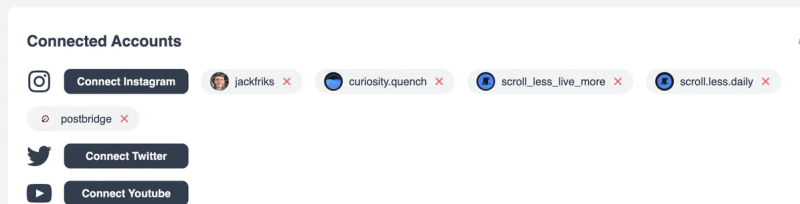
This article is to help you connect you Instagram accounts to post-bridge.com
There are two ways you can connect your Instagram accounts to our app.
- Instagram Login to Instagram
- Facebook Login to Instagram
If you are having trouble connecting your Instagram accounts to post-bridge.com please refer to the following information to make sure your accounts will be able to connect.
We recommend Instagram login as it’s much simpler to connect.
Instagram Login to Instagram Help
The following are requirements from Instagram with Instagram Login and must be true off the connect to any apps, including post bridge.
- Instagram account is a Business account or Creator Account
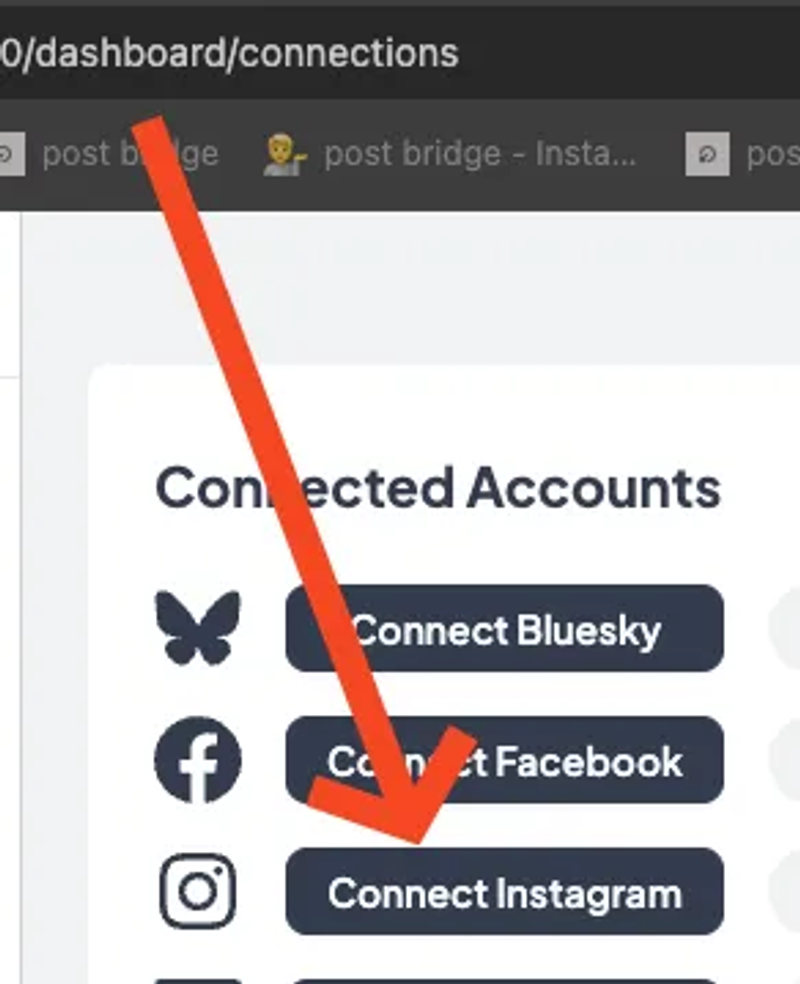
To connect an instagram business or creator account to post-bridge, follow the following steps in images:
- Press connect instagram button
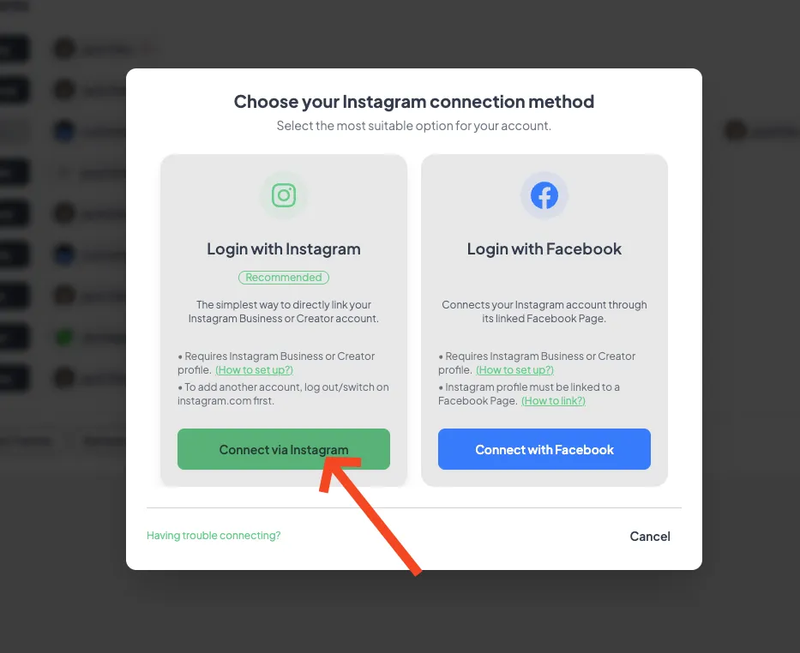
- Click the GREEN Connect via Instagram button
- You may see a slightly different screen, but leave all boxes toggled and click the allow button. If you are not signed in before connecting in your browser, you will be prompted to login to instagram and THEN see the option to approve access to post bridge. Click Allow button in both cases.
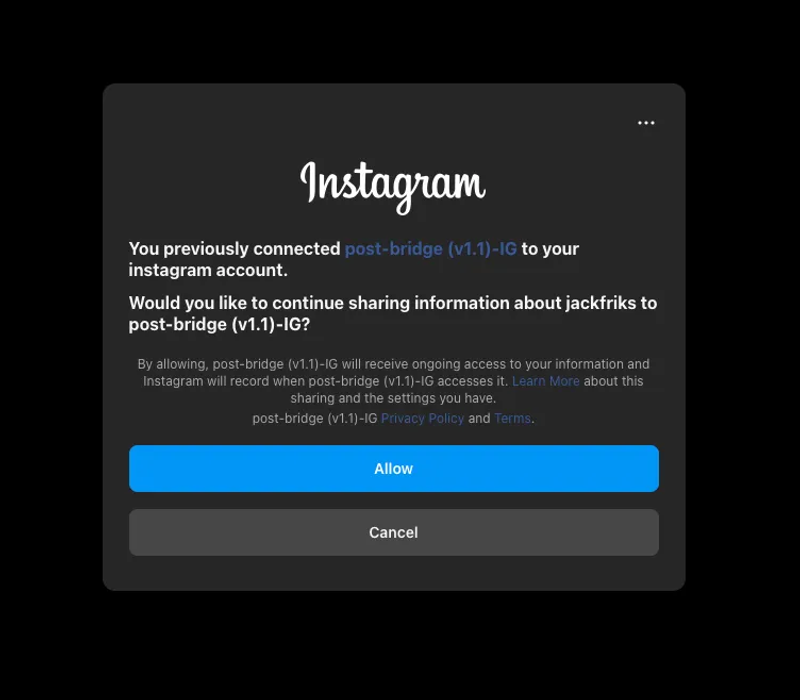
- That’s it! Your account will then show in the accounts page on post bridge!
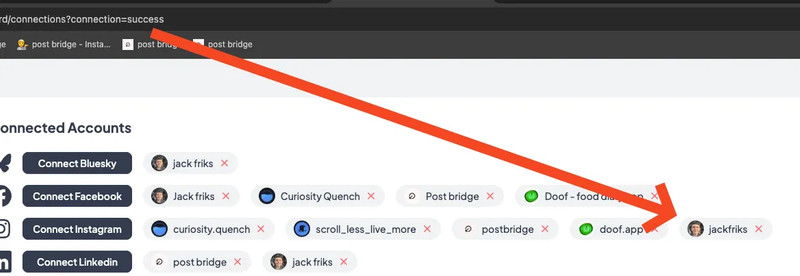
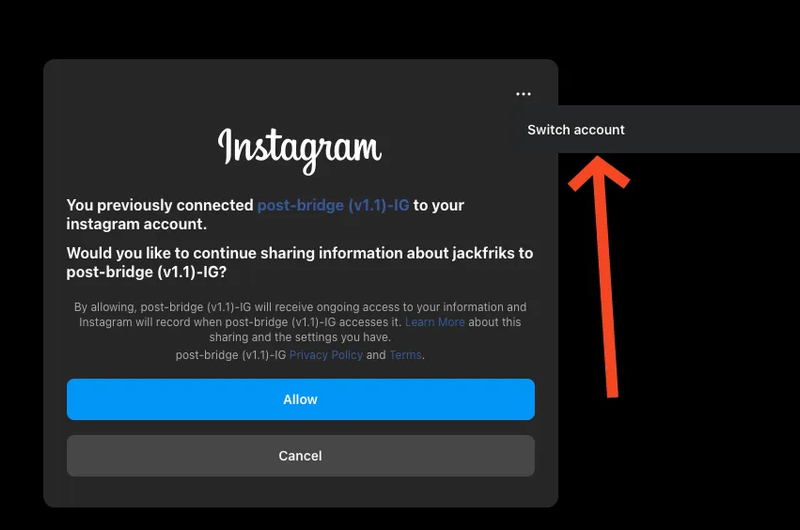
CONNECTING MULTIPLE ACCOUNTS: To connect multiple accounts through Instagram login, switch out of the account you are logged into in your browser or device and then Connect each account to post-bridge 1 at a time. - Or Press the connect button and then Switch account top right when asked for permissions.
Create once, post everywhere
post bridge publishes and schedules your posts to Instagram, TikTok, YouTube, X, LinkedIn, Facebook, Pinterest, Threads, Bluesky and Google Business Profile from one dashboard.
Try it free for 7 daysFacebook Login to Instagram Help
The following are requirements from Instagram with Facebook Login Meta and must be true to connect to any apps, including post bridge.
- Instagram account is a Business account or Creator Account
- Instagram account must be connected to a Facebook page (1 page per account)
More troubleshooting
If you have made your account a business or creator account recently it may take a few minutes to take effect, same thing for connecting pages.
If you still are having trouble reaching the account selection screen after connecting your accounts to post bridge (pictured above) then please follow the following steps:
- Click the connect instagram button on post-bridge.com/dashboard
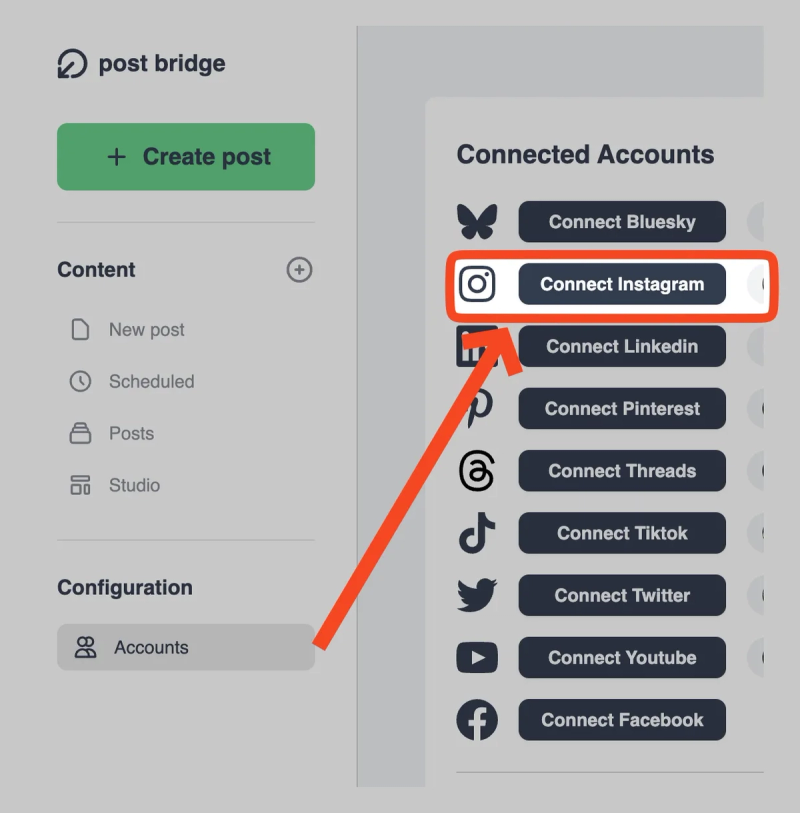
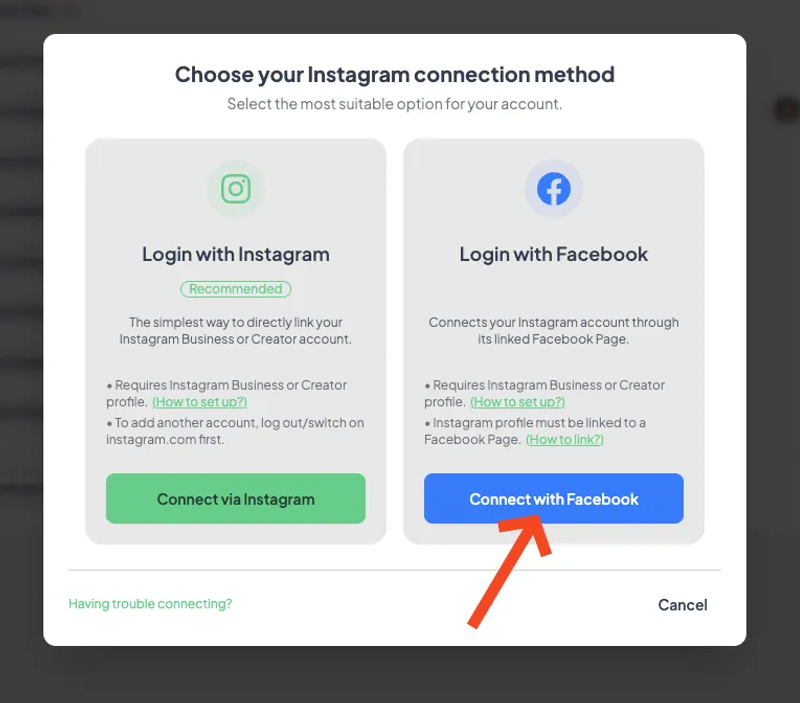
- After ensuring your account is a business/creator account AND also connected to a facebook page, click the BLUE Connect button
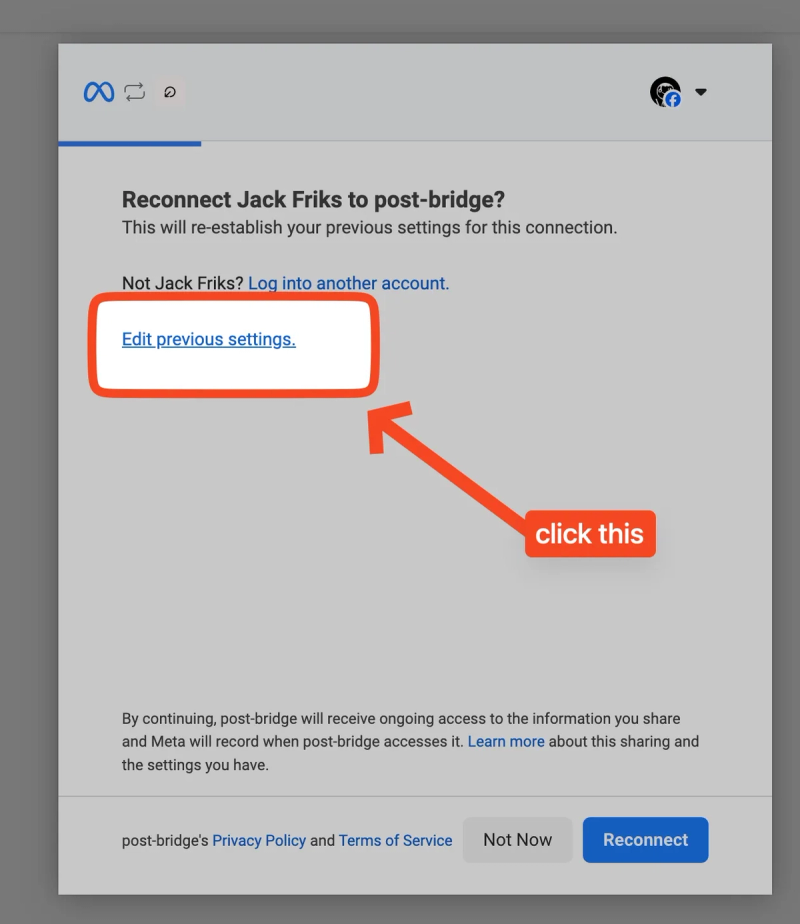
- [IMPORTANT] On the initial connection screen, then please select Edit Previous settings (if you see this screen, otherwise proceed as normal)
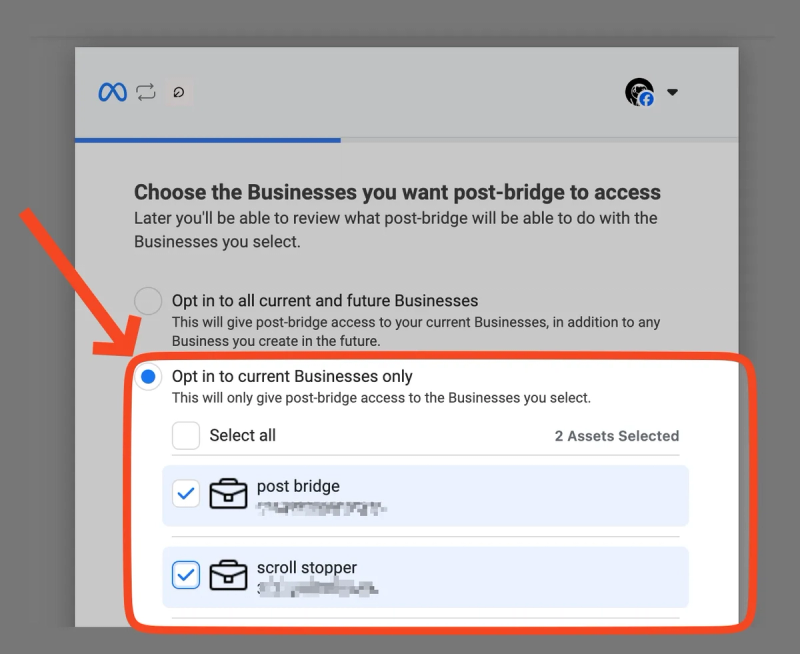
- If you have previously selected “Allow access to All businesses and future businesses” then please select directly the accounts you wish to connect here instead. Repeat for each following step: select the accounts you want to connect with post-bridge directly.
Click “Continue” button after, bottom right
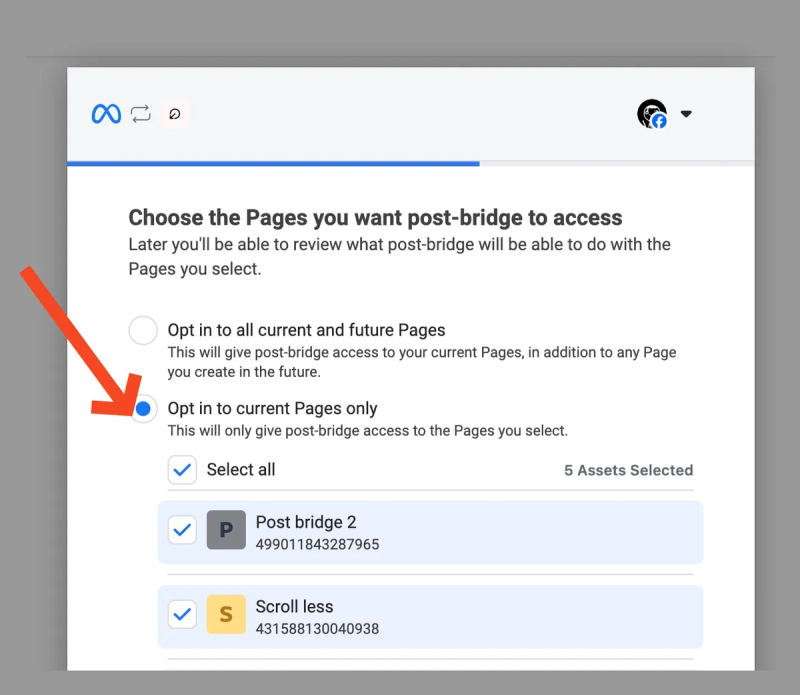
continue again
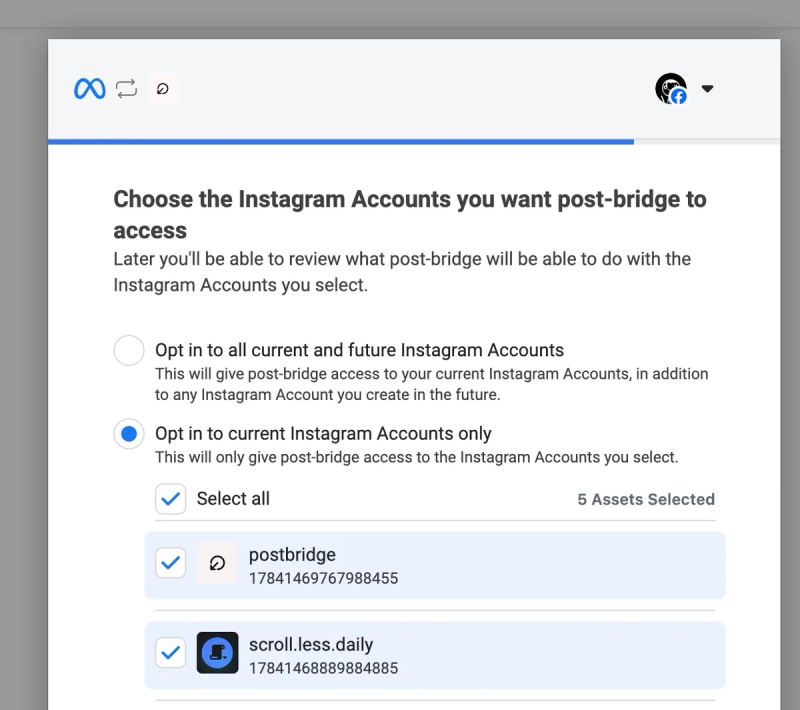
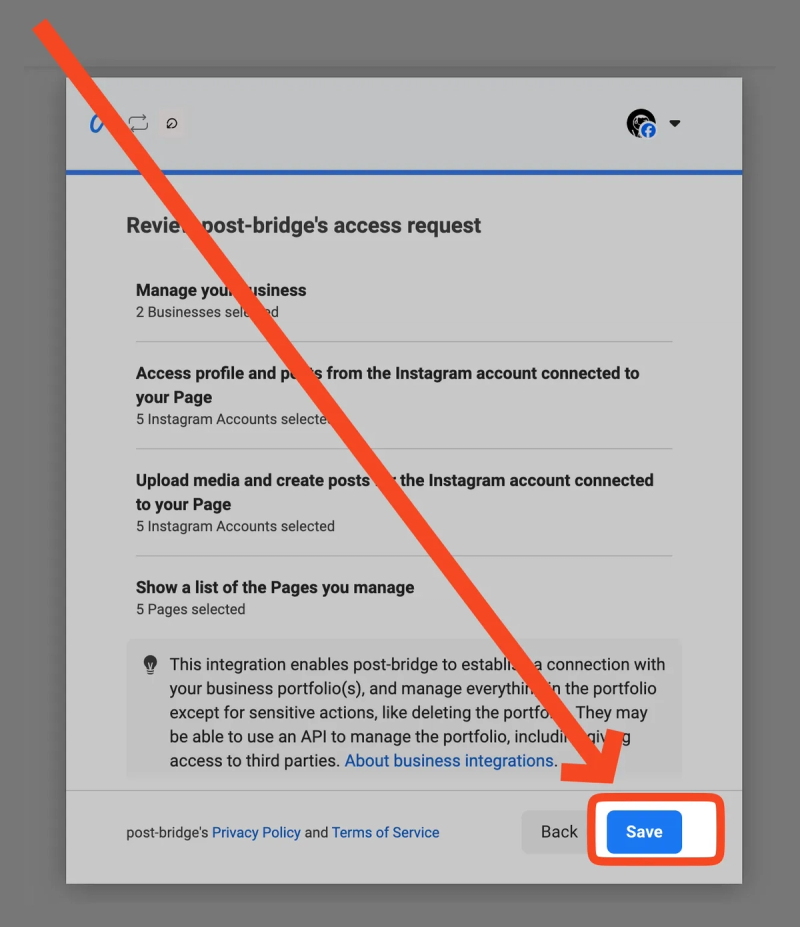
Finally confirm connection, then you will be redirected to post-bridge.com where you will select your instagram accounts
- Confirm the accounts you wish to connect to post bridge once more to finalize the connection.
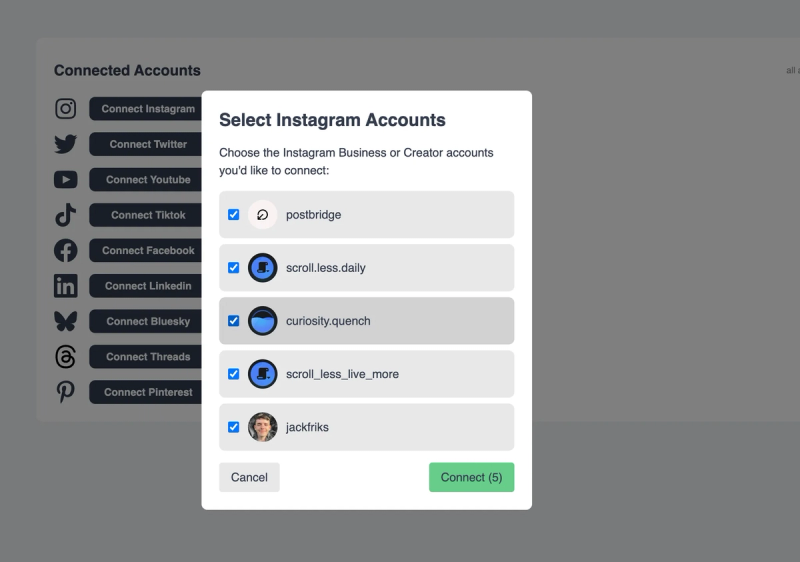
- Press Connect and you will see your accounts now in the Accounts page beside Instagram