
You've probably got a few Instagram posts you want to hide but don't want to delete. Maybe it's an old promotional post that's no longer relevant, a photo from a brand phase you've moved past, or content that just doesn't fit your current aesthetic anymore. Instagram's Archive feature solves this by letting you hide posts from your profile while keeping everything intact (likes, comments, and the original timestamp).
Instagram introduced the Archive feature in 2017, and it's become one of the most useful tools for managing your Instagram presence. When you archive a post, it disappears from your public grid but lives in a private Archive section that only you can access. The best part? You can bring it back anytime with all its engagement data perfectly preserved.
I'll walk you through everything you need to know about archiving Instagram posts, from the basic steps to workflows that creators use daily.
What Happens When You Archive an Instagram Post?
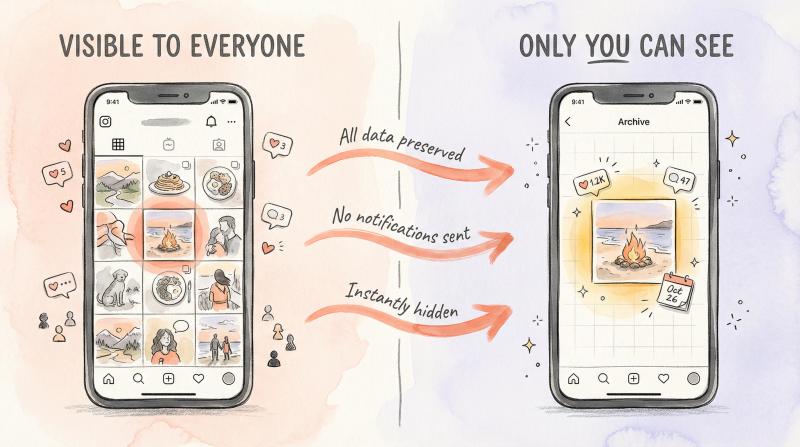
Archiving removes a post from your public profile while preserving it completely in your private Archive. All likes, comments, and engagement data stay intact, which is the key difference from deleting.
Here's what archiving actually does:
→ Your post vanishes from your profile grid immediately
Your followers can't see it anymore, and it won't show up when people visit your profile. But you can still view it anytime in your Archive section with all its original data (caption, hashtags, likes, comments, and the posting date).
→ No notifications are sent when you archive or unarchive content
Your followers won't get any alert that you hid a post. If you decide to restore it later, it quietly reappears in its original chronological position on your grid.
→ The engagement history stays frozen in time
While a post is archived, people can't add new likes or comments (since they can't see it), but when you unarchive it, all the previous engagement returns and people can interact again.
This makes Archive perfect for temporary cleanup without losing your social proof or engagement metrics.
Create once, post everywhere
post bridge publishes and schedules your posts to Instagram, TikTok, YouTube, X, LinkedIn, Facebook, Pinterest, Threads, Bluesky and Google Business Profile from one dashboard.
Try it free for 7 daysWhy Do People Archive Instagram Posts?
Content creators and businesses archive posts for practical reasons that go beyond hiding embarrassing old photos.

Profile curation and rebranding. When you're refreshing your brand or shifting your content direction, Archive lets you clean up your grid without deleting your history. Fashion brands do this constantly, archiving entire seasons of products to make room for new collections while preserving the engagement data for their records.
Seasonal content management. Holiday promotions, event announcements, or time-sensitive campaigns need to come down once they're over. Rather than delete them (and lose all that engagement), you can archive seasonal content and potentially unarchive it when that season comes around again next year.
Testing new aesthetics. If you're experimenting with a new grid layout or color scheme, you can temporarily archive posts that break the pattern, see how your profile looks, and restore them if you change your mind. Some creators test multiple grid patterns this way before committing to a final look.
Managing underperforming content. Posts that didn't perform well can drag down the perceived quality of your profile. Archiving them keeps your feed focused on your best work while maintaining the historical data in case you want to analyze what went wrong.
Starting fresh without creating a new account. Some people use bulk archive to essentially reset their Instagram presence. You can archive hundreds of old posts in minutes and start with a clean slate while keeping your follower count, username, and the option to restore content later.
Temporary privacy needs. Maybe someone in an old photo asks you to take it down, or you need to hide work-related content for a while. Archive handles this gracefully since you can restore it later when circumstances change.
The flexibility is what makes Archive valuable. You're never locked into a permanent decision.
How to Archive a Single Instagram Post (Step by Step)
Archiving one post takes about five seconds. Here's the exact process:
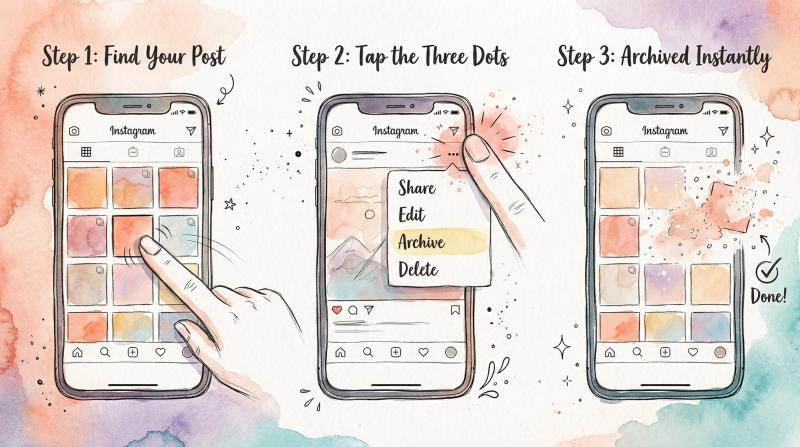
1. Open the Instagram app and find your post
Go to your profile (tap your profile picture in the bottom-right corner). Find the post you want to hide and tap it to view it full-screen.
2. Tap the three dots (…) in the top-right corner
This opens the options menu.
3. Tap "Archive" from the list
The post disappears from your grid immediately.
That's it. The post is now in your Archive, and only you can see it. Instagram doesn't ask for confirmation when archiving a single post, so the action is instant. If you tapped Archive by accident, you can always restore it from your Archive section (covered below).
How to Archive Instagram Reels
For Reels, the Archive option lives in a different menu location:
Open the Reel you want to archive, tap the three dots (…), then tap "Manage" and finally "Archive."
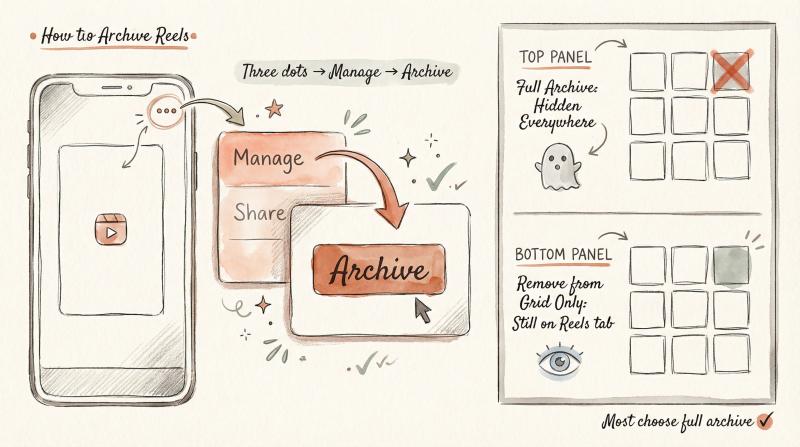
But here's something important: Instagram has two ways to hide Reels from your grid. You can either archive the Reel completely (which hides it from your profile entirely), or you can use "Remove from profile grid" which keeps the Reel visible on your Reels tab but removes the preview from your main grid.
Most people want the full archive, but if you just want a cleaner grid while keeping the Reel discoverable, "Remove from profile grid" is the lighter option.
How to Archive Multiple Instagram Posts at Once (Bulk Archive)
If you need to archive dozens or hundreds of posts (maybe during a major rebrand or profile cleanup), Instagram's bulk archive feature saves massive amounts of time.
1. Navigate to Your Activity
Go to your profile and tap the menu (three horizontal lines in the top-right). Tap "Your Activity," then navigate to "Photos and videos" and select "Posts."
2. Enable multi-select mode
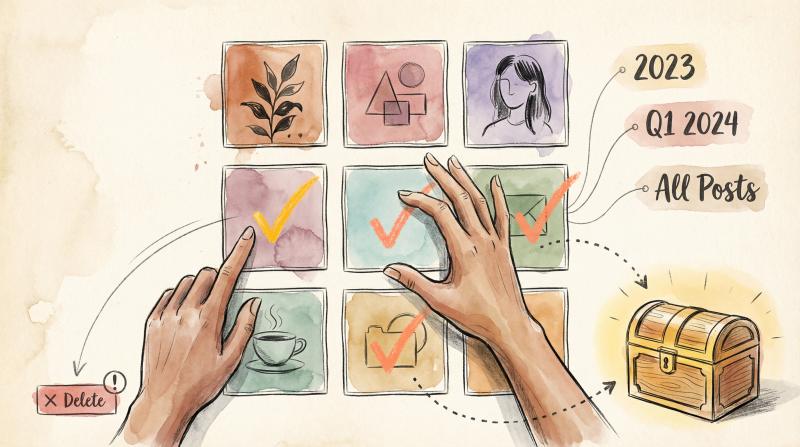
You'll see a grid of all your posts. Tap "Select" in the top-right corner to enable multi-select mode.
3. Select posts to archive
Tap each post you want to archive (a checkmark will appear on each selected thumbnail). You can select as many as you need, or use "Select All" if you want to archive everything.
4. Optional: Use date filters
Use the sorting tools at the top to filter by date ranges. This is helpful if you want to archive all posts from a specific time period, like "everything before 2023" or "all posts from Q1 2024."
5. Confirm archiving
Once you've selected your posts, tap "Archive" at the bottom of the screen. Instagram will show a confirmation popup asking "Archive these posts?" Tap "Archive" to confirm.
All selected posts vanish from your profile simultaneously and move to your Archive. This bulk action makes it feasible to completely reset your grid in minutes instead of archiving posts one by one for hours.
⚠️ Be careful here: the bulk selection screen also has a "Delete" option right next to "Archive." Make sure you tap Archive (which is reversible) rather than Delete if you want to keep the posts.
Where to Find Your Archived Instagram Posts
Your Archive is a private section in Instagram where all your hidden content lives. Here's how to access it:
1. Go to your profile → Menu → Archive
Tap the menu (three horizontal lines), and tap "Archive."
2. Switch between Archive types
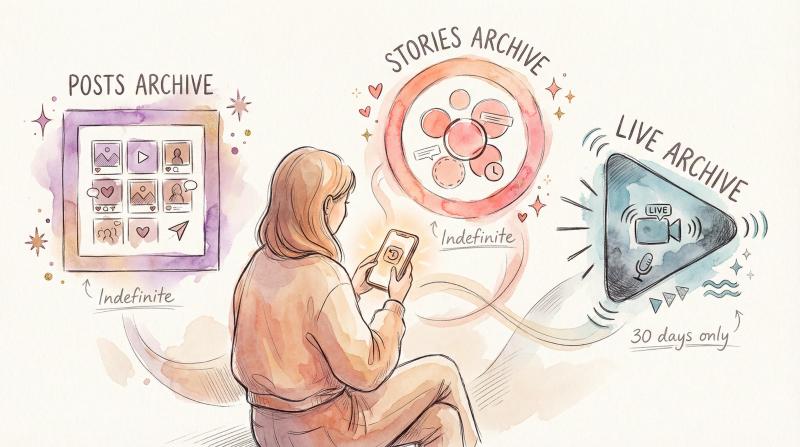
At the top of the Archive screen, you'll see a dropdown that lets you switch between three types:
Archive Type - What It Contains - Duration
- Posts Archive - All manually archived posts - Indefinite
- Stories Archive - Auto-saved Stories (if enabled) - Indefinite
- Live Archive - Automatically saved Live videos - 30 days only
3. View archived content
Tap "Posts Archive" to see all the posts you've archived. They're displayed in chronological order by original posting date.
From here, you can tap any archived post to view it full-screen with all its likes, comments, and engagement data visible. You'll see a note at the top saying "Archived on [Date]" to remind you it's not publicly visible.
Your Archive is completely private. Nobody else can see it or access the posts inside, even if those posts originally had lots of engagement from other people.
Do Instagram Stories and Live Videos Archive Automatically?
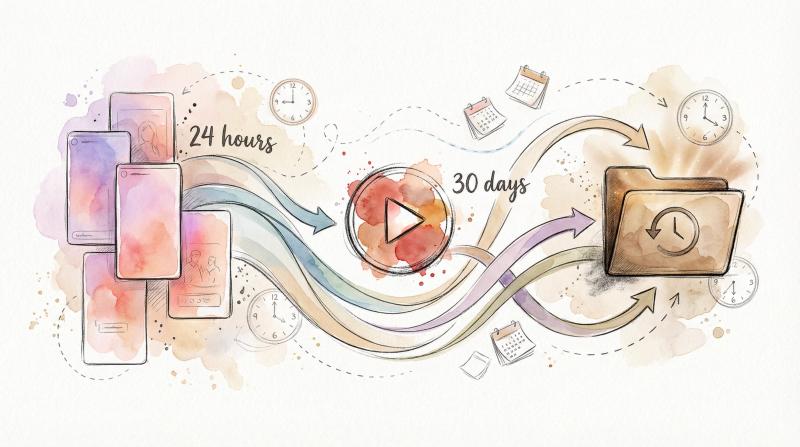
Instagram automatically archives your Stories (if you have the setting enabled) and Live videos (for 30 days).
Stories Archive: By default, Instagram saves your Stories to the Stories Archive when they expire after 24 hours. You can turn this off in settings if you don't want them saved, but most people keep it on because archived Stories can be added to Highlights anytime. This means you're not losing old Stories; they're just tucked away where you can find them later.
Live Archive: When you finish a Live video, Instagram automatically saves it to your Live Archive for 30 days. During that window, you can download it or re-share it. After 30 days, it's deleted automatically. Regular posts and Stories stay in Archive indefinitely, but Lives have this time limit.
To access these, just switch the dropdown in your Archive section from "Posts Archive" to "Stories Archive" or "Live Archive."
How to Unarchive (Restore) an Instagram Post
Changed your mind about hiding a post? Unarchiving puts it back on your profile exactly where it was before, with all its original engagement.

1. Open your Archive
Go to your Archive (Profile → Menu → Archive) and make sure you're viewing "Posts Archive" from the dropdown.
2. Find and open the post
Find the post you want to restore and tap it to open the full view.
3. Tap "Show on Profile"
Tap the three dots (…) at the top-right of the archived post, then tap "Show on Profile."
4. Confirm restoration
Instagram may ask you to confirm. Tap "Show on Profile" again to confirm.
The post returns to your grid in its original chronological position (based on when you first posted it, not when you unarchived it). All the likes and comments it had when you archived it are still there, and people can start interacting with it again.
Unarchiving is silent. Your followers don't get a notification, and the post doesn't show up as new in their feeds. It just quietly reappears on your profile. The only way someone would notice is if they manually scroll through your grid and happen to see it.
You can re-archive the post again if needed, or even delete it permanently from the Archive if you decide you don't want it at all anymore.
Instagram Archive: Frequently Asked Questions
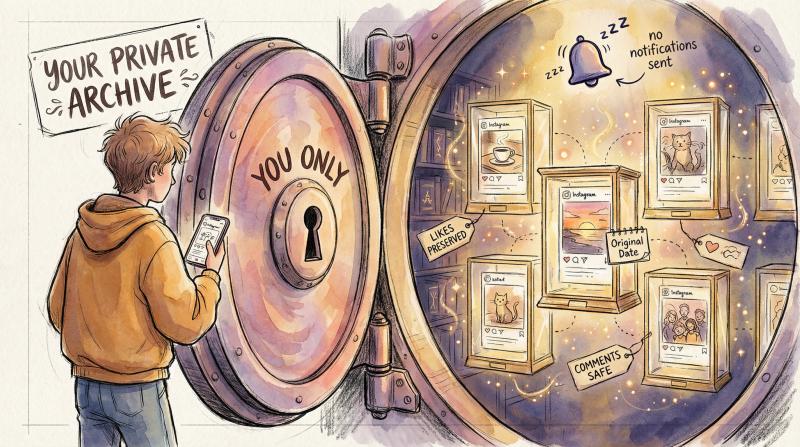
Can anyone see my archived posts?
No. Your Archive is completely private. Even followers who liked or commented on a post before you archived it can't see it once it's hidden. Your Archive is for your eyes only.
Will people know if I archive or unarchive something?
No. Instagram doesn't send any notifications when you archive or unarchive content. Followers might notice a post disappeared from your grid if they're paying close attention, but they won't get an alert about it.
Does archiving affect likes and comments?
Not permanently. All engagement data is preserved in the Archive. While the post is archived, nobody can add new likes or comments (since they can't see it). But when you unarchive, the post comes back with the exact same like count and comments it had before, and new engagement can start accumulating again.
Can I still see post insights for archived content?
Yes. If you have a Professional account (Business or Creator), you should still be able to view historical Insights for archived posts. The data doesn't disappear; it just stops accumulating new impressions while the post is hidden.
Can I archive Stories or just posts?
Both. Stories archive automatically when they expire (if you have the setting on), and you can manually archive feed posts and Reels. Live videos also archive automatically for 30 days.
Can I archive from desktop?
Not directly. Archive features live in the mobile app, and the Your Activity bulk tools are designed for iOS and Android. If you absolutely need to do it from a computer, you'd have to use an Android emulator like BlueStacks, but it's much easier to just use your phone.
Is there a limit to how many posts I can archive?
Instagram hasn't announced any fixed limit. You can archive as many posts as you want. Some creators have archived hundreds during profile overhauls without issues. The Archive essentially functions as cloud storage for your hidden content.
Does archiving help with engagement or reach?
Archiving itself doesn't boost your reach (the posts aren't visible, so they can't drive engagement). But curating your profile by hiding low-quality or off-brand content can make your profile more appealing to new visitors, which might improve your follow rate. Some people believe removing underperforming posts is better for your account than deleting them, though Instagram hasn't confirmed any algorithm penalty for deletion.
Can I edit an archived post?
Yes. You can open an archived post and tap the three dots to access "Edit" just like you would on a live post. This means you can update the caption, change location tags, or tag people while the post is archived. If you later unarchive it, those edits will be visible on your profile.
How Content Strategists Use Instagram Archive

Creators who manage Instagram professionally use Archive in specific ways that go beyond just hiding old posts:
→ Seasonal content rotation
E-commerce brands and influencers with seasonal products will bulk-archive off-season content to keep their profile focused on current offerings. When the season comes around again next year, they can unarchive and update those posts rather than recreating them from scratch.
→ Grid aesthetic testing
Before committing to a major visual rebrand, some creators archive posts that break the new color scheme or layout pattern, screenshot the result, and decide if they like the new look. If not, they can restore everything with a few taps.
→ Campaign cleanup
After running a time-sensitive campaign (product launch, giveaway, event promotion), the related posts can be archived once the campaign ends. This keeps your profile up-to-date for new visitors while preserving the campaign's engagement data for analysis.
→ Repurposing Stories for Highlights
Your Stories Archive is a content goldmine. Instead of letting Stories disappear after 24 hours, you can pull the best ones from your Archive and add them to permanent Highlights. This works especially well for FAQs, testimonials, behind-the-scenes content, or tutorials.
→ Reducing profile length for conversions
Some creators find that shorter, more focused profiles convert better. They'll archive older content to reduce scroll time and keep visitors engaged with their strongest recent work. The theory is that if someone has to scroll through 500 posts to see your best work, they might give up. But if your best 50 posts are front and center, they're more likely to follow.
→ A/B testing grid layouts
You can archive specific posts to test different grid patterns (like checkerboard layouts or color-blocked sections), take screenshots of each variation, compare them, and restore the layout that performs best.
→ Handling client requests or legal issues
If someone requests you take down a photo they're in, archiving is a gentler solution than deleting. You can restore it later if circumstances change or if you get permission.
Managing Social Media Content Across Multiple Platforms

If you're archiving Instagram posts as part of a broader content strategy refresh, you're probably managing multiple social platforms. This is where manual posting gets overwhelming fast.
Post bridge handles multi-platform scheduling from one place, which pairs well with Instagram's Archive workflow. Here's the practical flow:
You bulk-archive outdated Instagram content to clean up your grid. Then you schedule a batch of fresh content across Instagram, TikTok, YouTube, and LinkedIn using Post bridge, so your profile never looks empty during the transition. When you archive old posts and immediately replace them with scheduled new ones, your audience sees a refreshed profile without any awkward gaps.
The platform lets you upload content once and post it everywhere simultaneously (with TikTok draft support to avoid reach penalties, and automatic YouTube Shorts detection for 9:16 videos). This means you can refresh your Instagram grid while maintaining consistent posting across all your channels without spending hours copying content between platforms.
For example, if you archive 30 old Instagram posts on Monday, you could schedule 10 new posts to roll out over the next two weeks using Post bridge, keeping your profile active while you continue creating new content. The Starter plan ($9/month) supports 5 connected accounts, and the Creator plan ($29/month) handles 15, which works well for people managing personal and business profiles or multiple brands.
If you're doing heavy content curation with Archive, pairing it with a scheduler keeps your posting rhythm steady and prevents the "I archived everything, now what?" moment where your profile looks bare.
Tools That Complement Your Archive Workflow
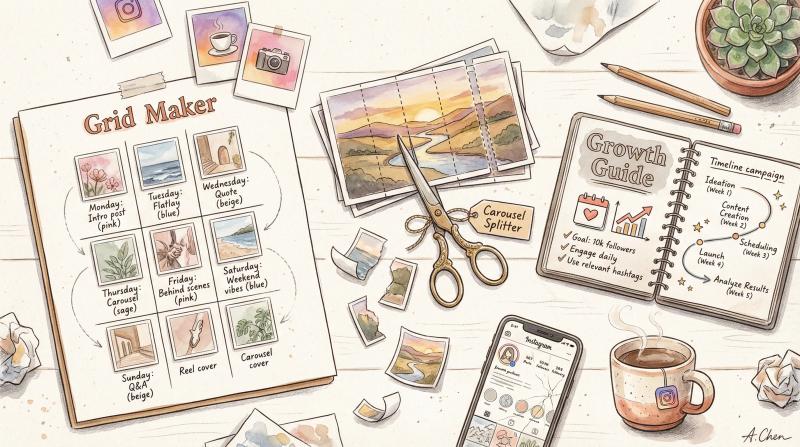
Beyond scheduling, there are a few free tools that work well when you're refreshing your Instagram grid:
The Instagram Carousel Splitter from Post bridge splits large images into carousel posts, which is useful if you archived a bunch of single images and want to repost them as a more engaging multi-slide format.
The Instagram Grid Maker helps you plan 3x3 or larger grid layouts. If you're archiving posts to achieve a specific aesthetic, this tool shows you exactly how your grid will look before you start archiving.
The Free Growth Guide has cadence and campaign ideas to help you maintain momentum while you're curating your Archive and planning fresh content. It's helpful if you're not sure what to post next after a major cleanup.
Archive vs. Delete: Which Should You Use?
The general rule is simple: archive instead of delete unless you're absolutely certain you want something gone forever.
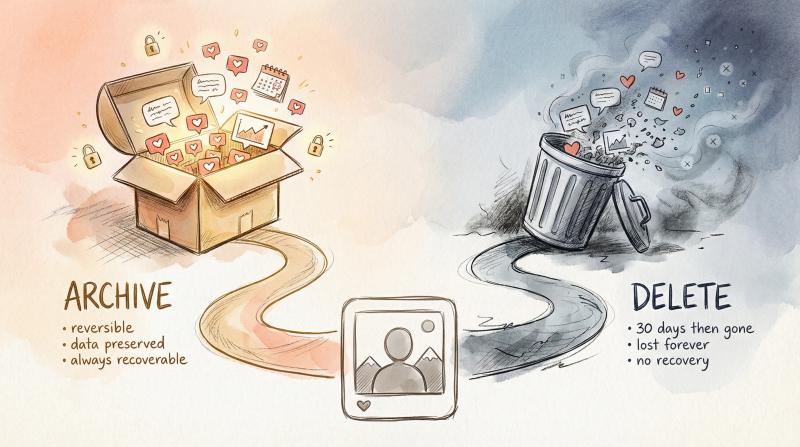
Here's how they compare:
Feature - Archive - Delete
- Visibility - Hidden from profile, visible to you - Gone to Recently Deleted (30 days), then permanently gone
- Engagement data - Fully preserved - Lost forever after 30 days
- Reversible - Yes, anytime - Only within 30 days
- Notifications - None sent - None sent
- Best for - Temporary cleanup, testing, curation - Removing content you truly don't want
Archiving is forgiving. You can change your mind in five minutes or five months and restore the post with zero consequences. Deleting is permanent (after the 30-day Recently Deleted window), and you lose all engagement data.
Some social media experts suggest archiving is safer for your account health than deleting, though Instagram hasn't confirmed any algorithm penalties for deletion. The thinking is that suddenly removing posts might disrupt the content signals Instagram has for your account, whereas archiving is less intrusive since the data still exists in their system.
From a practical standpoint, keeping engagement data through Archive can be valuable for analysis. If you delete a post that got 5,000 likes, you lose that proof of engagement. But if you archive it, you can still reference those metrics later to understand what resonated with your audience.
The only time deletion makes more sense is when you genuinely want content erased for privacy, legal, or reputational reasons. In those cases, delete and move on. For everything else, Archive gives you more options.
Final Checklist: Archive Like a Pro
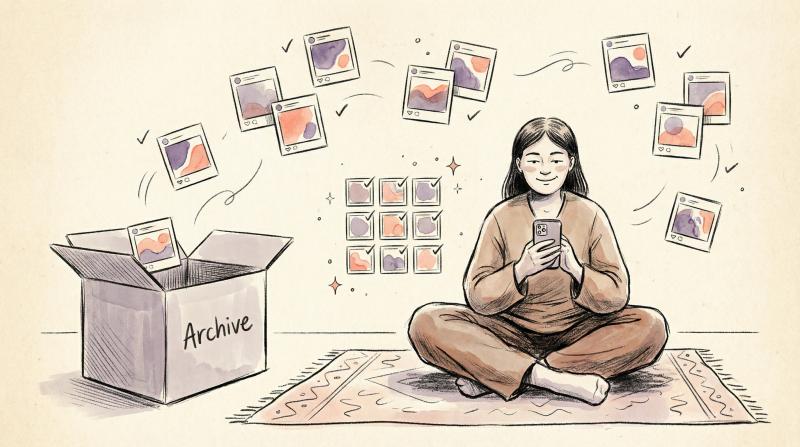
Here's your quick reference for archiving Instagram content:
Archive a single post: Open the post → Tap (…) → Archive
Archive a Reel: Open the Reel → Tap (…) → Manage → Archive
Bulk archive: Profile → Menu → Your activity → Photos and videos → Posts → Select → Archive
Find archived posts: Profile → Menu → Archive → Posts archive
Unarchive a post: Archive → Posts archive → Open post → (…) → Show on Profile
Stories Archive: Automatically enabled by default (toggle in settings)
Live Archive: Automatically saves for 30 days
Instagram Archive gives you complete control over your profile's narrative. You can hide what doesn't fit anymore without losing the effort you put into creating it, test new grid layouts without commitment, and adapt your presence over time without starting from zero.
Whether you're cleaning up one old post or bulk-archiving a hundred, the Archive feature makes it easy to evolve your Instagram strategy while keeping your history intact. Your profile stays focused on what matters now, and you keep the option to bring anything back later if you change direction.